What is MusicLab?
MusicLab is an innovative AI-powered music generation platform that creates entirely new music
by fusing patterns from two input tracks. Think of it as a creative music mixer that learns
from your favorite songs and generates something unique!
How Does It Work?
1
Upload Your Tracks
Choose two audio files (MP3, WAV, M4A, or FLAC) - Track A and Track B. These can be any genre or style!
2
Select Time Windows
Use the sliding controls to choose a 16-second segment from each track. This is where you pick the patterns you want to fuse.
3
AI Magic Happens
Our SimpleTransformer model (16.7M parameters) analyzes both segments using EnCodec audio encoding and generates new musical patterns.
4
Download Your Creation
Listen to the generated music and download it as a WAV file!
Understanding the Interface
Step 1: Upload Your Music
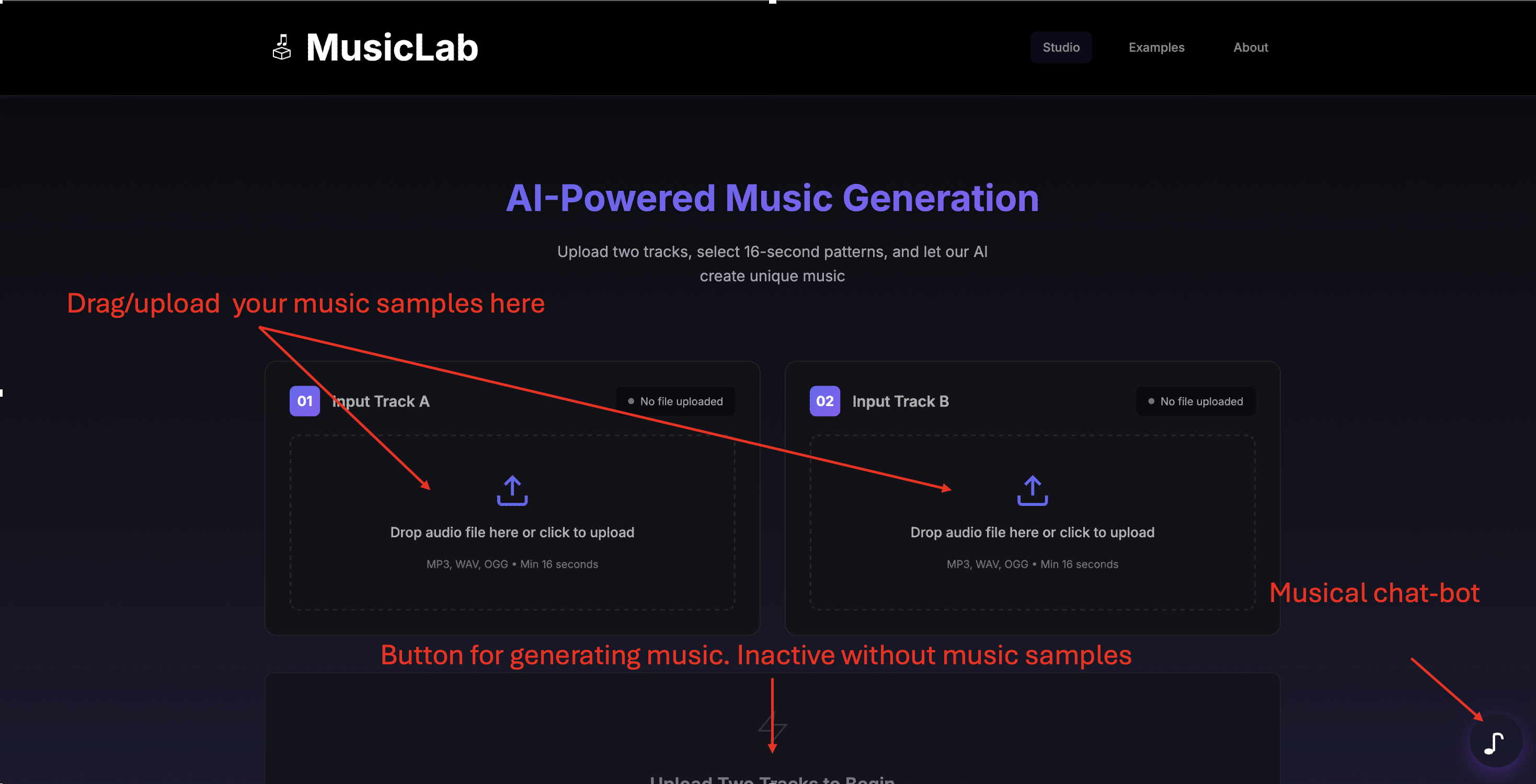
Drag/Upload Your Music Samples: You can either drag and drop audio files directly onto the upload areas or click to browse your computer. Each track area accepts MP3, WAV, OGG, or FLAC files with a minimum duration of 16 seconds.
Track A and Track B: Upload two different music tracks that you want to fuse together. The AI will learn patterns from both tracks to create something entirely new.
Musical Chatbot: Notice the floating eighth note icon in the bottom-right corner? That's MusicNote, your AI music assistant! Click it anytime to get help with pattern selection, music theory tips, or questions about how MusicLab works.
Step 2: Select Your Patterns
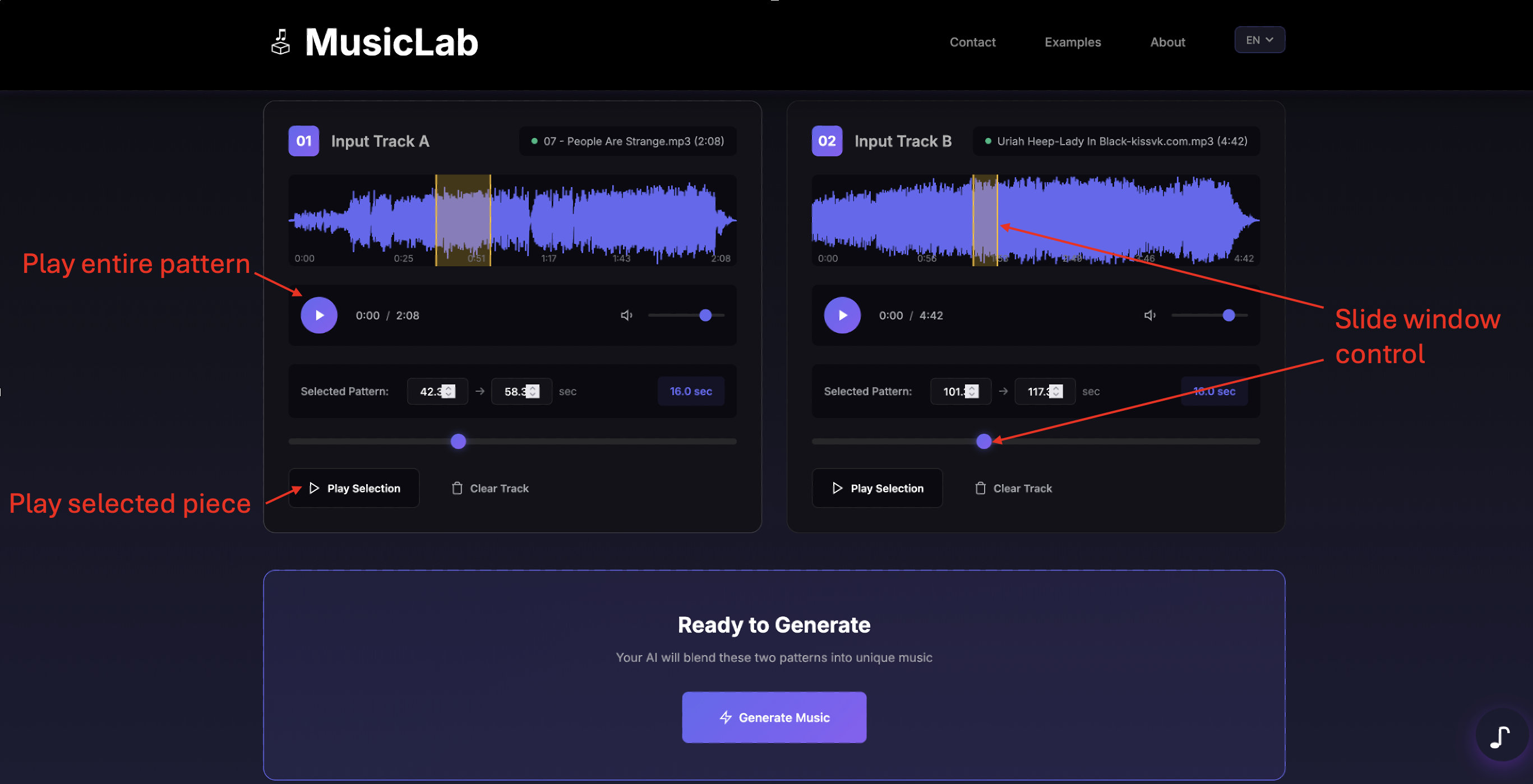
Waveform Display: Once uploaded, you'll see a visual waveform representation of your entire track. This helps you identify interesting sections with strong beats, melodies, or textures.
Sliding Window Control: Use the slider below each waveform to select exactly which 16-second segment you want to use. The blue highlighted area on the waveform shows your current selection. You can see the start and end times (in seconds) displayed below the waveform.
Play Entire Pattern: Click the large play button below the waveform to listen to your complete uploaded track from start to finish. This helps you explore the full song before making your selection.
Preview Selection: Use the "Preview Selection" button to listen to only the 16-second segment you've chosen with the slider. This is the exact portion that will be sent to the AI for music generation.
Clear Track: If you want to start over, click "Clear Track" to remove the uploaded file and begin again.
Duration Indicator: The blue "16.0 sec" indicator confirms that you've selected a valid 16-second pattern. Both tracks must have a selection before you can generate music.
Step 3: Generate and Download
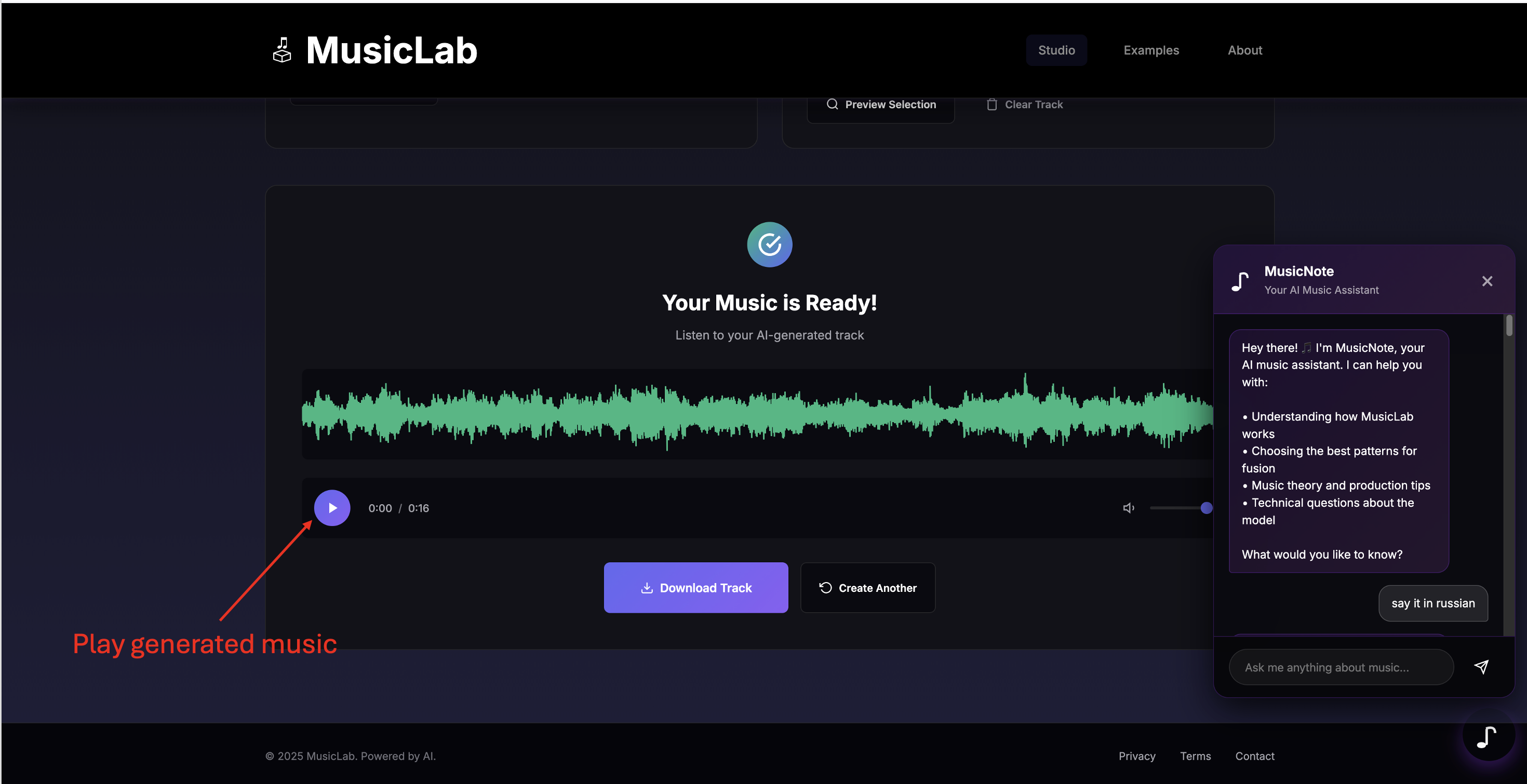
Play Generated Music: Once generation is complete, you'll see a new waveform showing your AI-created music. Click the play button to listen to the result. The player shows the current playback time and allows you to adjust volume.
Download Track: Love what you created? Click the "Download Track" button to save your generated music as a high-quality WAV file to your computer. You can use this in your own projects!
Create Another: Want to try different patterns or tracks? Click "Create Another" to return to the beginning and start a new fusion experiment.
MusicNote Assistant: The chatbot is always available to help! You can ask questions like "What patterns work well together?" or "How can I improve my results?" MusicNote has deep knowledge of music theory and can guide you toward better creative combinations.
Why 16 Seconds?
We use 16-second segments for several technical and creative reasons:
- Pattern Recognition: 16 seconds is long enough for the AI to recognize meaningful musical patterns like rhythm, melody, and harmony.
- Model Efficiency: Our EnCodec encoder works optimally with this duration, balancing quality and processing speed.
- Memory Constraints: Shorter segments allow for efficient processing on standard hardware without requiring expensive GPU resources.
- Musical Structure: 16 seconds typically captures 1-2 musical phrases or bars (depending on tempo), which is enough context for creative fusion.
- Focus: It forces you to choose the most interesting part of each track, leading to more creative results!
Tips for Best Results
Complementary Rhythms
Choose one track with a strong beat and another with a compelling melody. This creates interesting interplay between rhythm and melodic elements.
Harmonic Compatibility
Tracks in the same or related keys (e.g., C major and A minor) work best together. This ensures harmonies blend smoothly without clashing.
Energy Balance
Mix high-energy sections with calmer ones for interesting dynamic contrast. This adds emotional depth and keeps listeners engaged.
Timbral Variety
Different instruments (e.g., guitar + piano) create richer fusions. Combining diverse timbres adds texture and complexity to the output.
Avoid Silence
Choose segments with actual musical content, not silent or very quiet parts. The AI needs sufficient information to generate compelling patterns.
Experiment!
Try unexpected combinations - sometimes the most creative results come from unlikely pairings. Don't be afraid to mix different genres!
Quality Control & AI Optimization
Not sure where to start? Let our AI find the perfect patterns for you!
Click the "✨ Find Fitting Music Patterns with AI" button to automatically
discover the optimal 16-second segments from both tracks that work best together.
How It Works:
-
Grid Search: The AI evaluates 100 different combinations
(10×10 grid) across both tracks to find promising starting points.
-
Quality Scoring: Each combination is scored using our
AudioDiscriminator (music critic) which evaluates harmonic compatibility,
rhythmic coherence, and overall musical quality.
-
Bayesian Optimization: The AI then performs 40 additional
intelligent refinements around the best candidates to find the absolute
optimal match.
-
Best Match Selected: Out of 140 total evaluations, the
AI automatically selects and sets the highest-scoring pattern combination.
Download Results: After optimization completes, click
"📥 Download the Accuracy Score" to get a CSV file with all 140 evaluations,
ranked by quality score. This lets you explore alternative pattern combinations!
The optimization takes approximately 5-10 minutes on CPU. Once complete,
the sliders will automatically move to the optimal positions, and you can
click "Generate Pattern" to create your music!
Technical Details
- Model: SimpleTransformer with 16.7 million parameters
- Audio Codec: EnCodec (24kHz sample rate, 128 encoding dimensions)
- Input: Any audio format (automatically converted to 24kHz mono)
- Output: 16-bit PCM WAV file
- Processing: CPU-based inference (no GPU required)
- Privacy: All processing happens on our server - your files are not stored permanently
Need Help?
Click the floating eighth note icon in the bottom-right corner to chat with
MusicNote, our AI music assistant! MusicNote can help you with:
- Understanding how MusicLab's AI model works
- Choosing the best pattern combinations for creative results
- Music theory concepts and production techniques
- Technical questions about audio formats and processing
- Creative inspiration and suggestions for your next fusion
- Troubleshooting any issues you encounter
MusicNote maintains conversation history throughout your session, so you can have
a natural dialogue about your music creation process. The chatbot is knowledgeable,
friendly, and always ready to assist you in making the most creative music possible!